|
viewing concgrams |

|

|

|
|
viewing concgrams |
|
|
|
When you first open a concgram file created by WSConcGram, it will look something like this one
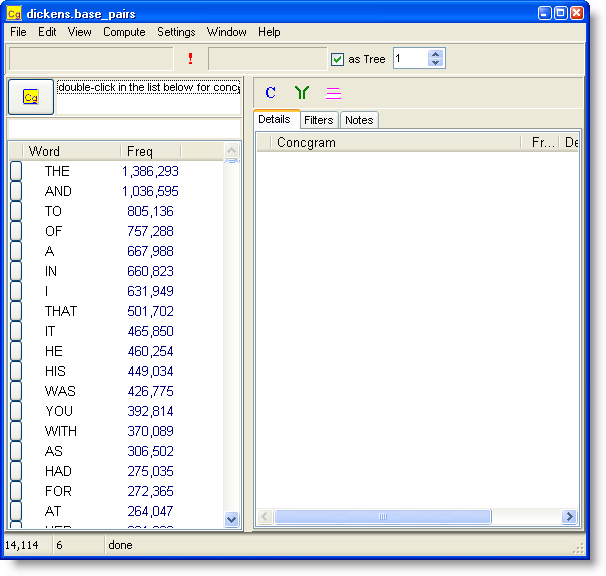
It'll appear (by default) in frequency order as set in the settings but you can sort it by pressing the Word and Freq headers, and can search for items using the little box above the list.
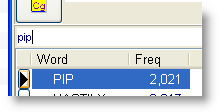
To get a detailed set of concgrams, double-click an item such as PIP (the hero of Great Expectations), or drag it to the list-box above. Then press the concgram button beside that.
You then get a tree view like this
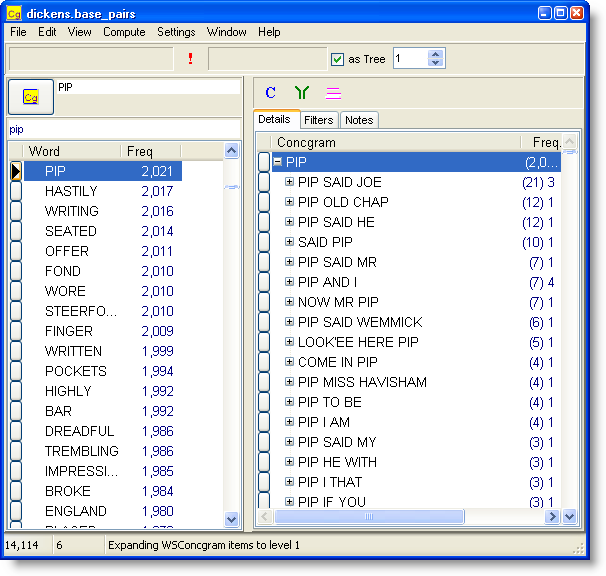
where similar items are grouped. Each branch of the tree shows how many sub-items and how many items of its own it has. In the example above, PIP SAID JOE has (21) items; there are 3 cases of PIP SAID JOE and a further 18 with PIP SAID JOE plus another word or two: the (20) =6+14.
The other controls are used for suspending lengthy processing ( ) changing from a tree-view to a list, for concordancing (
 ), for filtering (
 ), clearing filters (
 ), and showing more or less of the tree (
 ).
).
So if you prefer a plain list, click as Tree to view like this:
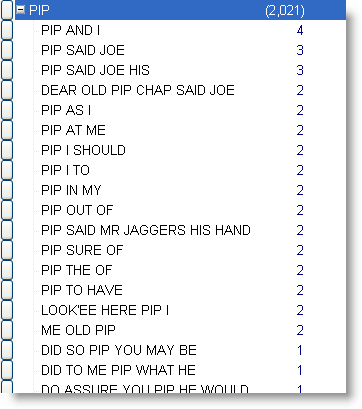
You may if you like select several items like this:
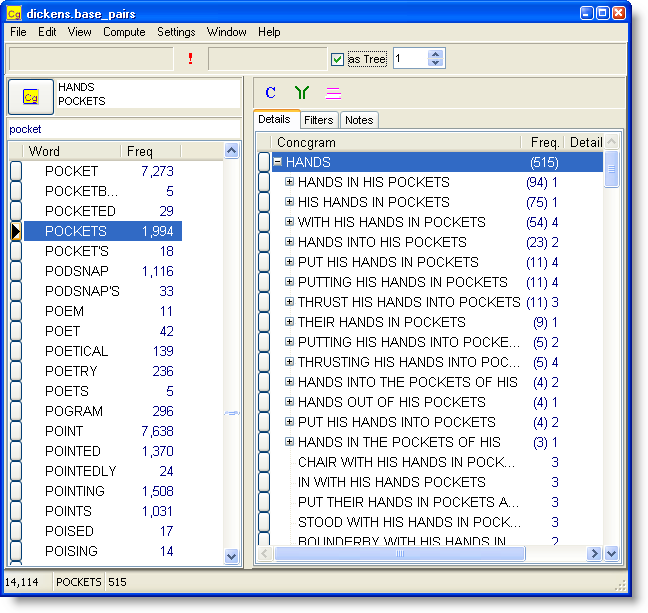
but do note that the concgrams will have to contain all of the words selected.
After filtering appropriately and pressing the Concordance button
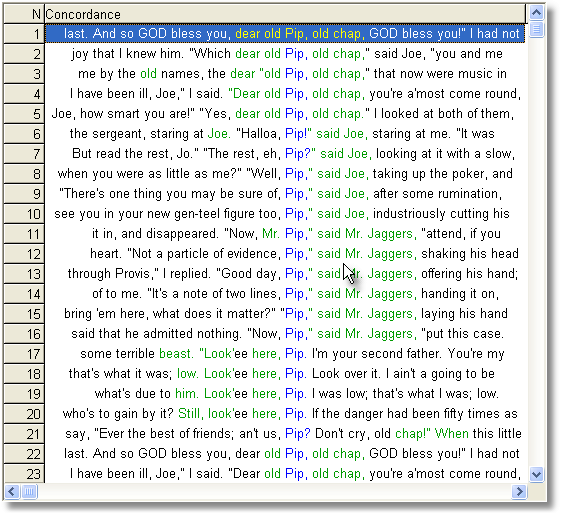
If you right-click and choose Show Details  you'll get to see the details of any section of the tree you have selected:
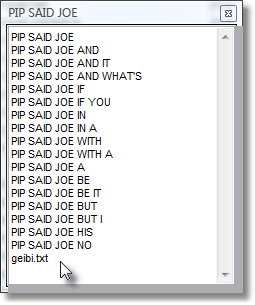
where you see the various forms and the filename(s) they came from.
Page url: http://www.lexically.net/downloads/version5/HTML/?viewing_concgrams.htm

